



From mid-October 2026, the payroll run in KLARA will have a new interface and an updated workflow. Its basic purpose remains the same: you create and review your employees’ payslips and complete the payroll run. This article explains the key changes and guides you through the new process step by step.
What’s changing at a glance
- New payroll processing overview
- Faster processing
- Review payslips before running payroll
- Save payroll runs as drafts
- Background processing
- Status of each step in the overview
- Send payslips via SecureSend
The new payroll run in video
Leander walks you through the new payroll run directly in KLARA: from the new overview to processing a payroll run and the key changes to the workflow.
1. New payroll processing overview
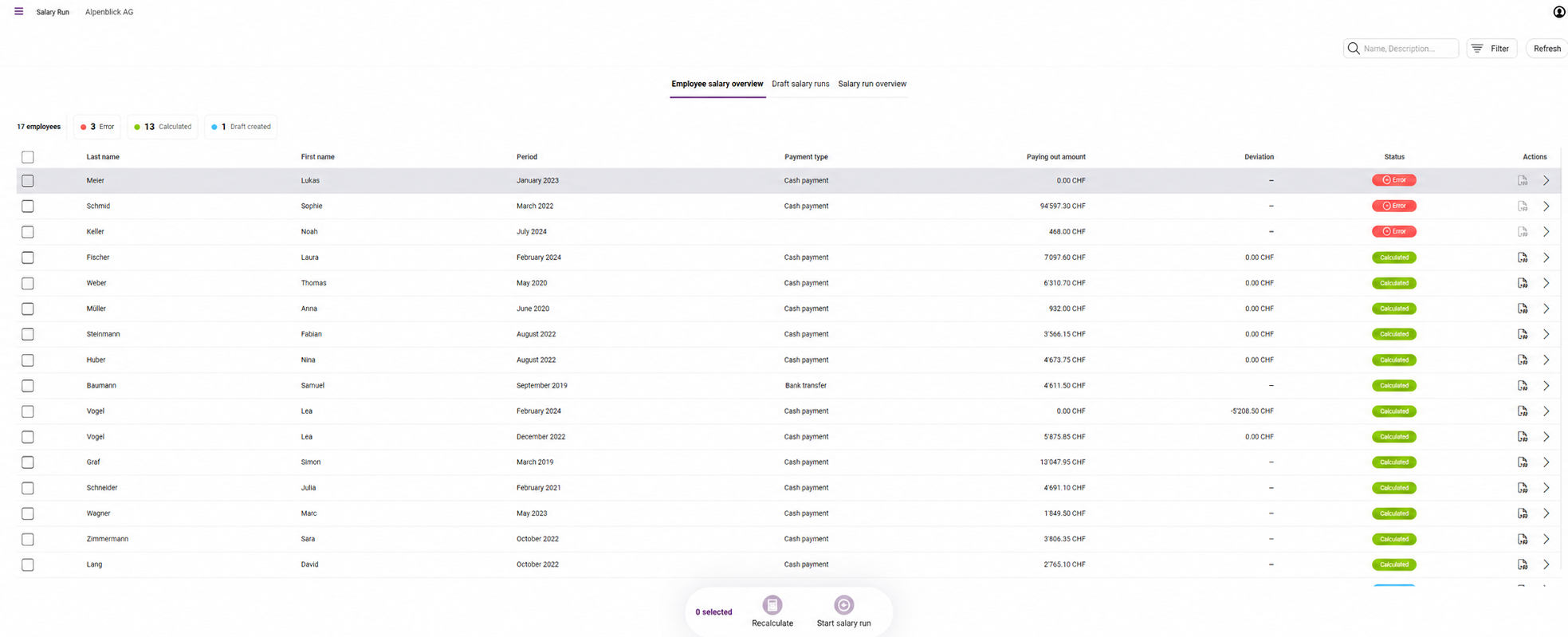
Go to “Employees” to access payroll processing. Here, you can see all your employees in one overview.
You can search and filter the overview. You can also use the filter to choose which fields are displayed.
Missing or incorrect information is displayed as a warning or error. Hover over the message to see the reason. For most messages, a link takes you directly to the relevant screen so you can make the necessary correction.
2. Faster processing
One of the key improvements to the new payroll run is faster processing. This noticeably reduces waiting times, particularly for larger payroll runs.
For companies that previously had to wait longer for a payroll run to process, this primarily means less waiting and a smoother workflow.
3. Review payslips before running payroll
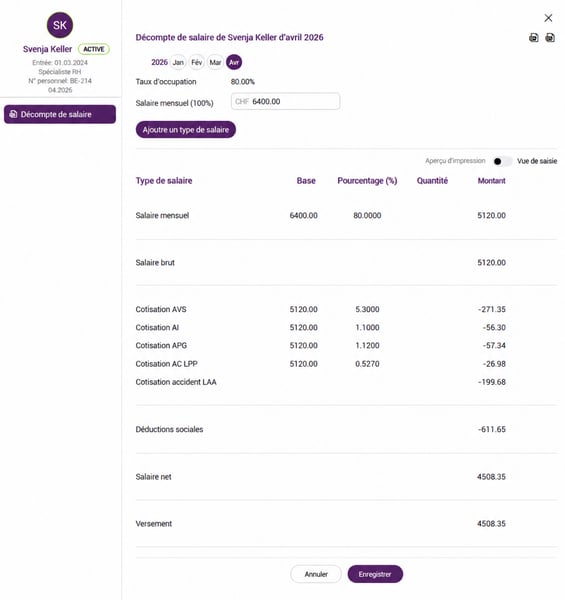
Click the arrow on the right to open an employee’s provisional payslip. You can review all items there in detail.
Add variable salary components using the “Add wage type” button. You can also enter salary adjustments, such as a pay rise, directly here.
For changes to master data, such as the employment level, continue to “Manage employees”.
The timeline at the top also allows you to go back to months that have already been processed and make retroactive adjustments.
4. Start a payroll run and save it as a draft
Once you have finished reviewing everything, select the employees to be processed in the overview and click “Start payroll run”.
In the next step, you can optionally give the payroll run a name. This is useful, for example, if you process monthly and hourly-paid employees in separate payroll runs.
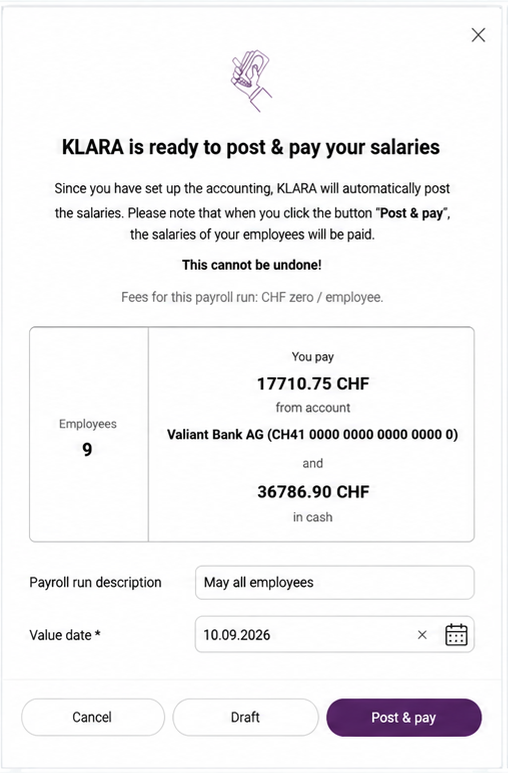
A value date is required for the payroll run. This also applies to salaries paid in cash or manually.
You now have two options: save the payroll run as a draft if changes are still required or if you want to share the provisional payslips internally for review. Alternatively, you can complete the payroll run directly via “Post & pay”.
Drafts then appear in the relevant section of the overview page. From there, you can continue processing or cancel them.
You can find detailed step-by-step instructions for running payroll in our Support Center.
5. The payroll run is processed in the background
Once started, the payroll run is processed in the background. You can continue working in KLARA while this is happening.
While processing is in progress, you can see the current status in the overview.
6. Status of each step in the overview
A payroll run shows the status of four steps: payroll calculation, bank transfer, posting and delivery.
The status display shows you which steps have been completed and where action is still required. For example, a yellow indicator for delivery means that not all payslips could be delivered successfully. Hover over a status to see more information.
If a step has failed or been skipped, you can trigger certain actions again individually. This applies, for example, to sending payslips to individual employees or all employees.

You can find more information about initiating salary payments in our Support Center.
7. Send payslips via SecureSend
With the new payroll run, payslips are sent via SecureSend. Print & Send and delivery by standard email will no longer be available.

